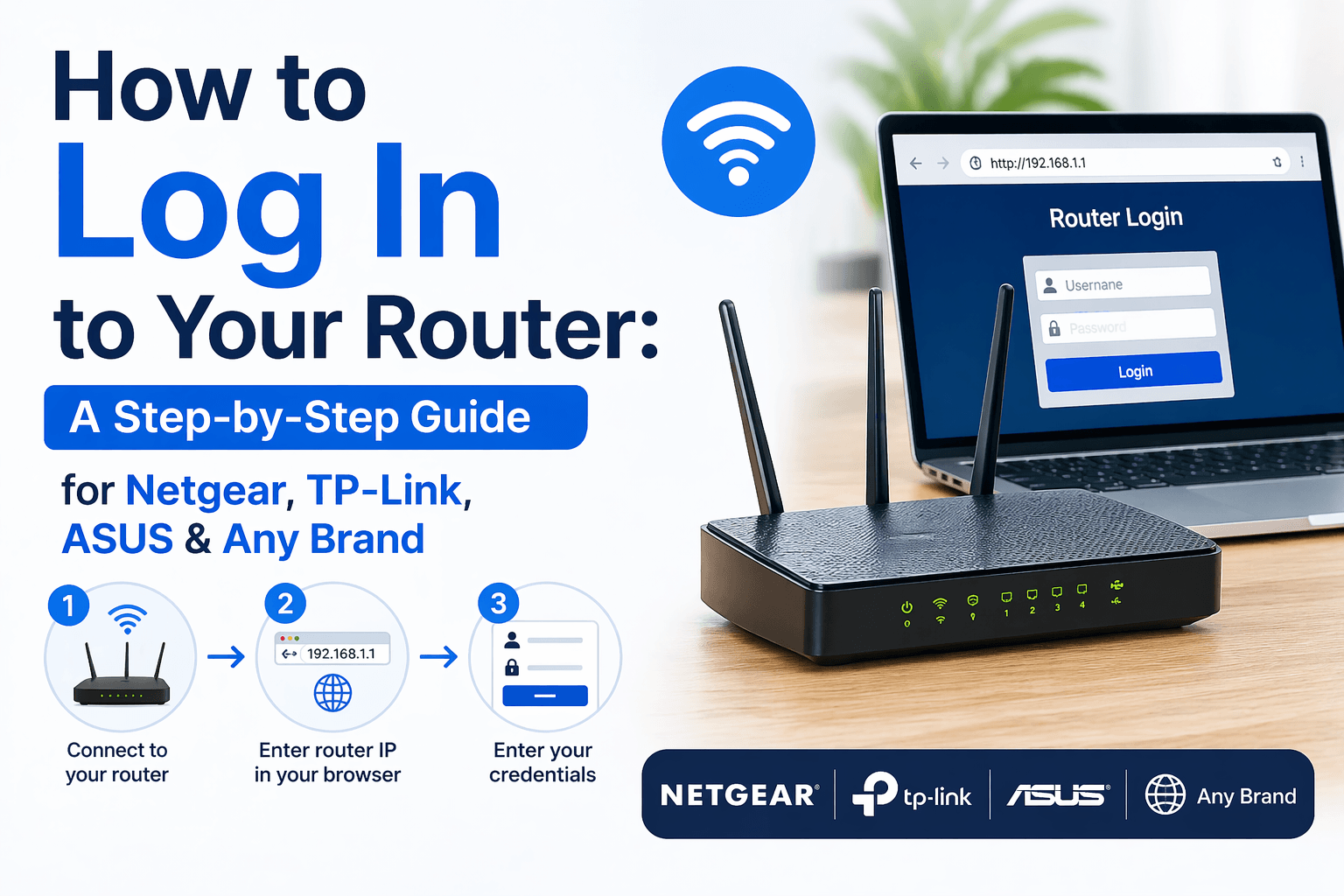
To log in to your router, connect your device to the router’s network, find the default IP address (typically 192.168.0.1 or 192.168.1.1), enter that address into a web browser, and then type the default username and password to reach the admin dashboard. This universal three-step method works on virtually every router regardless of make or model sold on the consumer market today.
For Netgear, TP-Link, and ASUS routers, the login process follows the same pattern but uses brand-specific web addresses and mobile apps. Netgear routers are accessed through routerlogin.net or the Nighthawk app, TP-Link routers through tplinkwifi.net or the Tether app, and ASUS routers through router.asus.com or the ASUS Router app. Other popular brands including Linksys, eero, Google Nest WiFi, and Xfinity follow similar conventions with their own dedicated URLs or mandatory mobile apps for setup and daily management.
If you cannot log in due to a forgotten password or a page that refuses to load, a factory reset restores the default credentials in under a minute. Understanding the difference between the router admin password (used to access settings) and the Wi-Fi password (used to connect devices to the network) also helps prevent common lockout situations.
Below, this guide walks through the universal login method, brand-specific instructions for every major router manufacturer, and troubleshooting steps to follow when the standard process fails.
What Is a Router Login and Why Do You Need to Access Your Router?
A router login is the authentication process used to access the admin dashboard of your router, a built-in web interface hosted directly on the device that stores every configuration setting for your home network. Logging in gives you complete control over how your Wi-Fi operates.
Next, understanding what the admin dashboard actually contains helps explain why this access matters for every household that relies on Wi-Fi for daily work, entertainment, and connected devices.
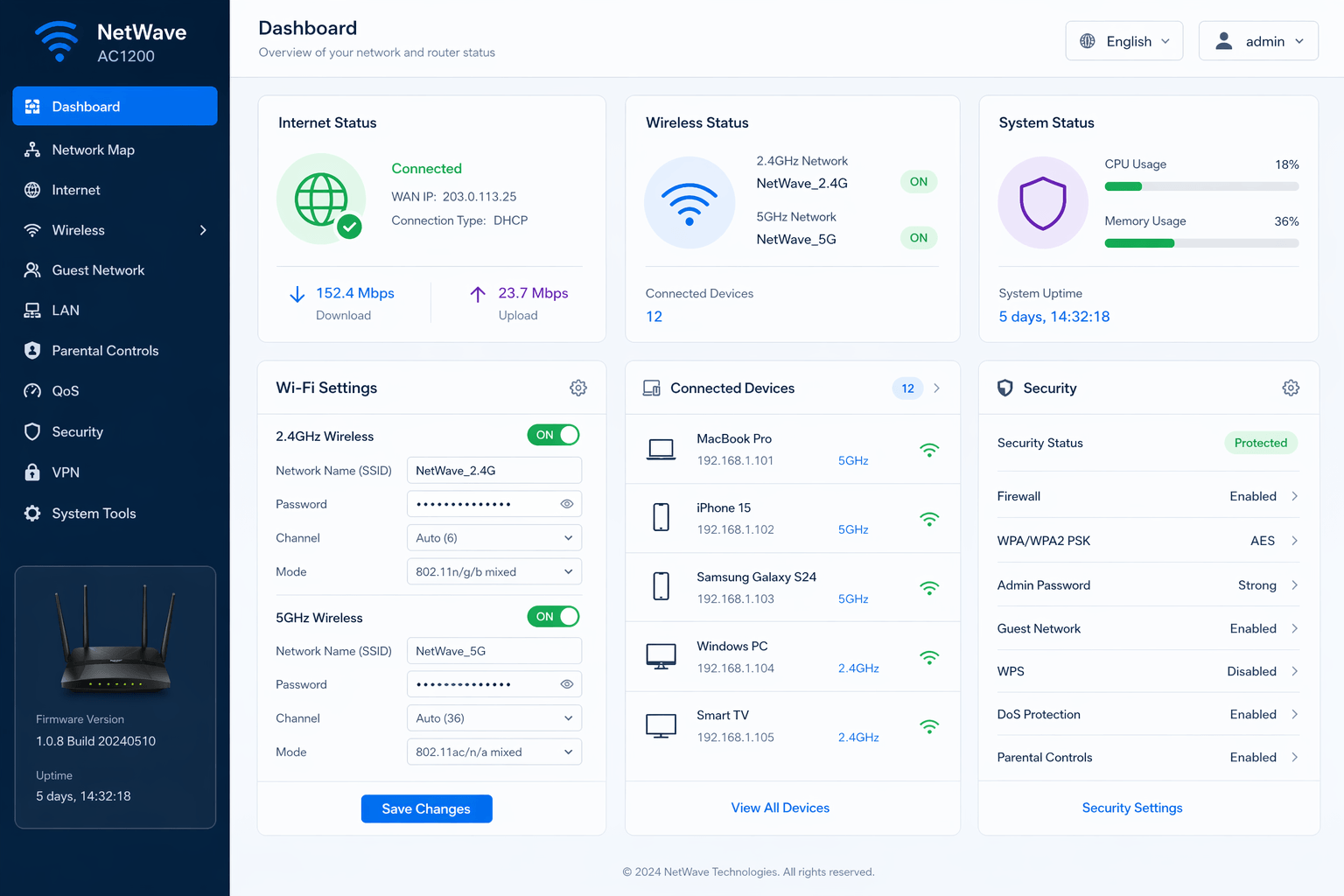
The admin dashboard is essentially a small website that lives on your router and is only reachable from devices connected to your local network. Once inside, you gain the ability to change the Wi-Fi network name (SSID), update the Wi-Fi password, install firmware updates, set up a guest network, enable parental controls, forward ports for gaming consoles or remote access, review the full list of connected devices, and toggle security protocols such as WPA2 or WPA3.
Accessing these settings matters for three main reasons. First, it protects your home network from intruders by letting you replace weak default passwords with strong custom ones. Second, it improves performance through firmware updates and band selection between 2.4 GHz, 5 GHz, and 6 GHz frequencies. Third, it enables advanced features like parental controls, guest Wi-Fi isolation, and VPN passthrough that cannot be configured any other way.
Default router credentials such as admin/admin or admin/password are publicly documented by every manufacturer, which makes them trivial for attackers to exploit if left unchanged. Changing these defaults immediately after your first login is widely recommended by cybersecurity firms including Avast and NETGEAR as the single most important step in securing a home Wi-Fi network against unauthorized access.
How Do You Log In to Your Router Step by Step (Universal Method for Any Brand)?
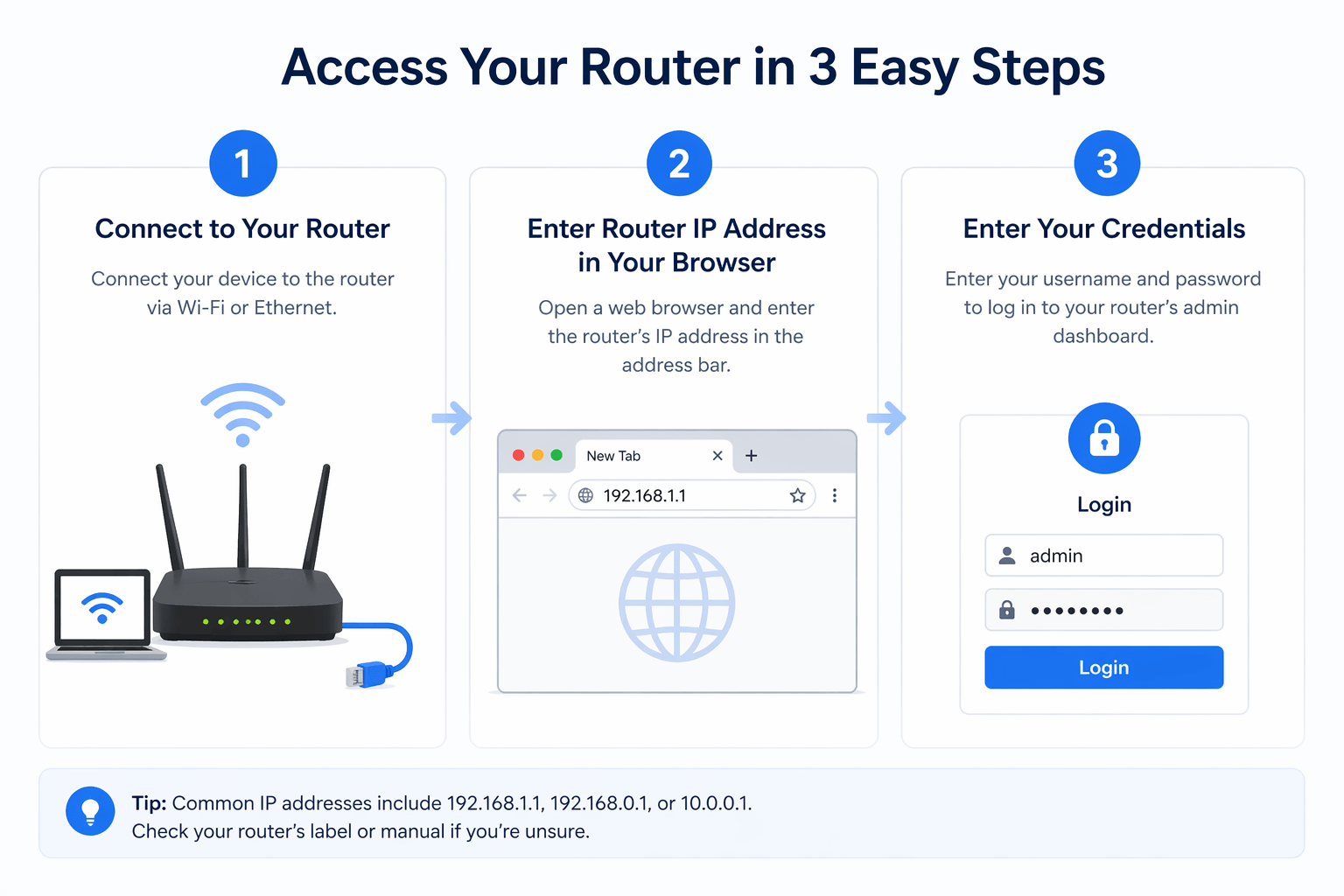
To log in to your router step by step, complete three core actions in order: connect your computer or phone to the router’s network, enter the router’s default IP address into a web browser’s address bar, and type the default username and password on the login screen that appears. This universal method works on nearly every router brand sold worldwide.
Below, each of the three steps is broken down with the practical details needed to complete it successfully on the first attempt, even for users who have never accessed a router admin page before.
How Do You Connect Your Device to the Router Before Logging In?
You must connect your device to the router either wirelessly through its Wi-Fi network or physically with an Ethernet cable plugged into one of the LAN ports on the back of the router. The router’s admin page is only reachable from devices on the local network, so cellular data connections will not work.
Specifically, a wired Ethernet connection is the most reliable option for first-time setup or troubleshooting because it eliminates any Wi-Fi signal issue that could interrupt the login session halfway through. For Wi-Fi connections, verify on your device that you are joined to the correct network name, especially in homes with mesh satellites, range extenders, or multiple access points sharing similar SSIDs.
To confirm your connection before continuing, run these quick checks based on the device you are using:
- On Windows: Click the Wi-Fi or network icon in the taskbar and confirm the router’s SSID is listed as Connected.
- On Mac: Click the Wi-Fi icon in the menu bar and check that your router’s network appears at the top with a checkmark.
- On iPhone and Android: Open Settings, tap Wi-Fi, and verify the network you are joined to matches your router’s SSID exactly.
- For Ethernet: Plug one end of the cable into your computer and the other into a numbered LAN port on the router (not the WAN or internet port).
How Do You Find Your Router’s Default IP Address (Gateway)?
Your router’s default IP address, also called the default gateway, is usually 192.168.0.1, 192.168.1.1, or 10.0.0.1, and it is printed on a sticker on the bottom or back of the router. Type this address into a web browser’s address bar, not into a Google or Bing search box, to reach the login page.
In addition, if the sticker has worn off or you cannot locate the user manual, every operating system offers a built-in way to look up the gateway address on demand without any third-party tool.
Here are the fastest methods for each platform:
- Windows: Open Command Prompt or PowerShell, type
ipconfig, press Enter, and read the number next to Default Gateway. - Mac: Open System Settings, click Network, select your active Wi-Fi or Ethernet connection, click Details, and look under the TCP/IP tab for Router.
- iPhone: Open Settings, tap Wi-Fi, tap the blue info icon next to your connected network, and scroll to the Router field.
- Android: Open Settings, tap Network and Internet or Connections, tap your Wi-Fi network, and check the Gateway field under advanced details.
Once you enter the IP address and press Enter, a login prompt loads within a second or two. Most routers use HTTP rather than HTTPS for this local admin page, so your browser may display a warning such as “Your connection is not private” caused by a self-signed certificate. This is expected behavior on local networks, and you can safely click Advanced and proceed to reach the login screen.
What Are the Default Usernames and Passwords for Most Routers?
The most common default router credentials are admin/admin, admin/password, and admin/1234, all printed on the label underneath or on the back of the router. These defaults are case sensitive and must be typed exactly as shown on the sticker or inside the user manual that shipped with the device.
Furthermore, newer router models from major brands now force you to create a custom admin password during initial setup, so the factory defaults only apply the very first time you log in or immediately after performing a factory reset.
The table below lists the default IP addresses and login credentials for the ten most popular consumer router brands on the market, giving you a single reference point to bookmark before troubleshooting any new or unfamiliar device:
| Brand | Default IP Address | Default Username | Default Password |
|---|---|---|---|
| Netgear | 192.168.1.1 | admin | password |
| TP-Link | 192.168.0.1 | admin | admin |
| ASUS | 192.168.1.1 | admin | admin |
| Linksys | 192.168.1.1 | admin | admin |
| D-Link | 192.168.0.1 | admin | (blank) |
| Belkin | 192.168.2.1 | (blank) | (blank) |
| Xfinity Gateway | 10.0.0.1 | admin | password |
| Motorola | 192.168.0.1 | admin | motorola |
| Huawei | 192.168.3.1 | admin | admin |
| Tenda | 192.168.0.1 | admin | admin |
If none of these combinations work, the router has been configured with a custom password at some earlier point, and a factory reset is the only reliable way to recover access.
How Do You Log In to Specific Router Brands (Netgear, TP-Link, ASUS, and More)?
To log in to specific router brands, use the dedicated web address or official mobile app provided by each manufacturer. Netgear uses routerlogin.net and the Nighthawk app, TP-Link uses tplinkwifi.net and the Tether app, ASUS uses router.asus.com and the ASUS Router app, while newer mesh systems like eero and Google Nest WiFi require their mobile apps exclusively.
Below, each of the major brands is covered with its exact login URL, default credentials, app alternative, and any brand-specific quirk you should expect on the first attempt.
How Do You Log In to a Netgear Router (Including Nighthawk & Orbi)?
To log in to a Netgear router, open a web browser while connected to the router’s network and go to routerlogin.net, routerlogin.com, or the gateway IP 192.168.1.1. The default username is admin and the default password is password, both printed on the label beneath the router.
Moreover, Netgear offers two separate apps depending on which product line you own, so the login path varies slightly for flagship Nighthawk routers compared to Orbi mesh systems.
Here is how the process differs across the Netgear lineup:
- Nighthawk routers: Use routerlogin.net in a browser or download the Nighthawk app from the App Store or Google Play for a mobile-first experience with setup, firmware updates, and parental controls built in.
- Orbi mesh systems: Use orbilogin.com in a browser or the dedicated Orbi app to manage the main router and all satellite units from a single screen.
- If the page fails to load: Clear your browser cache, disable any active VPN, or type the gateway IP 192.168.1.1 directly instead of the domain name.
- Netgear Business products: Business devices such as WAC and WAX access points use a separate APLogin portal rather than the consumer routerlogin domain.
How Do You Log In to a TP-Link Router?
To log in to a TP-Link router, enter tplinkwifi.net, 192.168.0.1, or 192.168.1.1 into the address bar of Chrome, Firefox, or Edge while connected to the router’s Wi-Fi or Ethernet network. Older TP-Link models accept admin as both the username and password, while newer models prompt you to create a custom admin password on first login.
Additionally, TP-Link offers two alternative login methods that fit different user preferences, especially for households that prefer managing their network from a phone rather than a computer.
The full TP-Link login landscape covers three practical scenarios:
- Browser login: Type tplinkwifi.net or 192.168.0.1 into the address bar, proceed past any self-signed certificate warning, and enter the admin password you created during setup.
- Tether app: Download the TP-Link Tether app from the App Store or Google Play for a streamlined mobile interface that mirrors most web-based features.
- TP-Link ID (cloud account): If you previously linked your router to a TP-Link ID, sign in with those cloud credentials to enable remote management from outside your home network.
If you see a “Privacy Error” warning in your browser, this is expected behavior because the TP-Link web interface uses a self-signed certificate rather than one issued by a public certificate authority. The connection to your local router remains secure, and you can click Advanced followed by Proceed to tplinkwifi.net (unsafe) without any real risk.
How Do You Log In to an ASUS Router?
To log in to an ASUS router, open a browser and navigate to router.asus.com or 192.168.1.1. The factory default credentials are admin for both the username and password on older models, while newer models such as the RT-AX and ZenWiFi lines require you to set a custom password during the initial setup wizard.
Furthermore, ASUS provides a unified mobile app that works across both standalone routers and AiMesh systems, which makes it the preferred choice for users who want a single interface to manage multiple nodes from anywhere in the home.
The three most practical ways to reach an ASUS router’s admin panel are:
- Web browser: Enter router.asus.com or 192.168.1.1 into Chrome, Firefox, or Edge while connected to the ASUS network, then log in with your admin credentials.
- ASUS Router app: Download the official ASUS Router app from the App Store or Google Play to configure AiProtection, AiMesh, parental controls, and QoS directly from your phone.
- AiMesh dashboard: For multi-node AiMesh setups, log in to the primary router first and then manage all satellite nodes from the AiMesh section within the admin panel.
How Do You Log In to Linksys, eero, Google Nest WiFi, and Xfinity Routers?
To log in to Linksys, eero, Google Nest WiFi, and Xfinity routers, use the brand-specific app or web address designated by each manufacturer. Linksys supports both a browser at 192.168.1.1 and the Linksys Smart Wi-Fi app, while eero and Google Nest WiFi require their mobile apps because they have no web interface at all.
Notably, the shift toward mandatory mobile apps reflects how modern mesh systems are managed differently from traditional single-unit routers, and understanding which method applies to which brand saves significant time during setup.
The login paths for these four brands break down as follows:
- Linksys: Enter 192.168.1.1 or myrouter.local in a browser, or download the Linksys Smart Wi-Fi app. Default credentials are usually admin for both fields, although newer models guide you through password creation on first use.
- eero: Download the eero app from the App Store or Google Play, then sign in with the account created during initial setup. There is no web-based login for eero mesh systems, so the app is the only supported method.
- Google Nest WiFi: Install the Google Home app and sign in with the Google account linked to the network. Like eero, Nest WiFi has no browser admin page and is fully managed through the app.
- Xfinity Gateway: Open the Xfinity app and sign in with your Xfinity ID, or enter 10.0.0.1 in a browser using the default credentials admin and password to reach the gateway admin page.
What Should You Do If You Can’t Log In to Your Router?
If you cannot log in to your router, run through four fixes in order: verify your device is connected to the correct network, type the gateway IP directly in the address bar, disable any active VPN or proxy, and perform a factory reset as a last resort to restore the default credentials.
How Do You Perform a Factory Reset to Recover Your Router Login Credentials?
To perform a factory reset, press the small recessed Reset button on the back of your router with a paperclip or pin for 10 to 30 seconds, depending on the model, until the status lights blink or turn off. Release the button and wait two to three minutes for the router to fully reboot.
After the reset completes, the router returns to its factory state and accepts the default username and password printed on the label. Keep in mind that a factory reset erases every custom setting including the Wi-Fi network name, Wi-Fi password, port forwarding rules, and any parental controls, so plan to reconfigure the router from scratch after logging back in with the default credentials.
What Is the Difference Between a Router Admin Password and a Wi-Fi Password?
The router admin password grants access to the router’s settings page for management tasks, while the Wi-Fi password is what devices type to join the wireless network. These are two completely separate credentials stored independently inside the router.
The breakdown below clarifies how each one is used in daily practice:
- Admin password: Required only when logging in to the router dashboard at an IP like 192.168.1.1. Default is usually admin or password. Used for changing any router setting.
- Wi-Fi password: Required every time a new phone, laptop, or smart device connects to the wireless network. Default is printed on the router label as a long alphanumeric string. Used strictly for network access.
Changing one does not affect the other, so updating your Wi-Fi password will not change the admin login credentials, and vice versa.