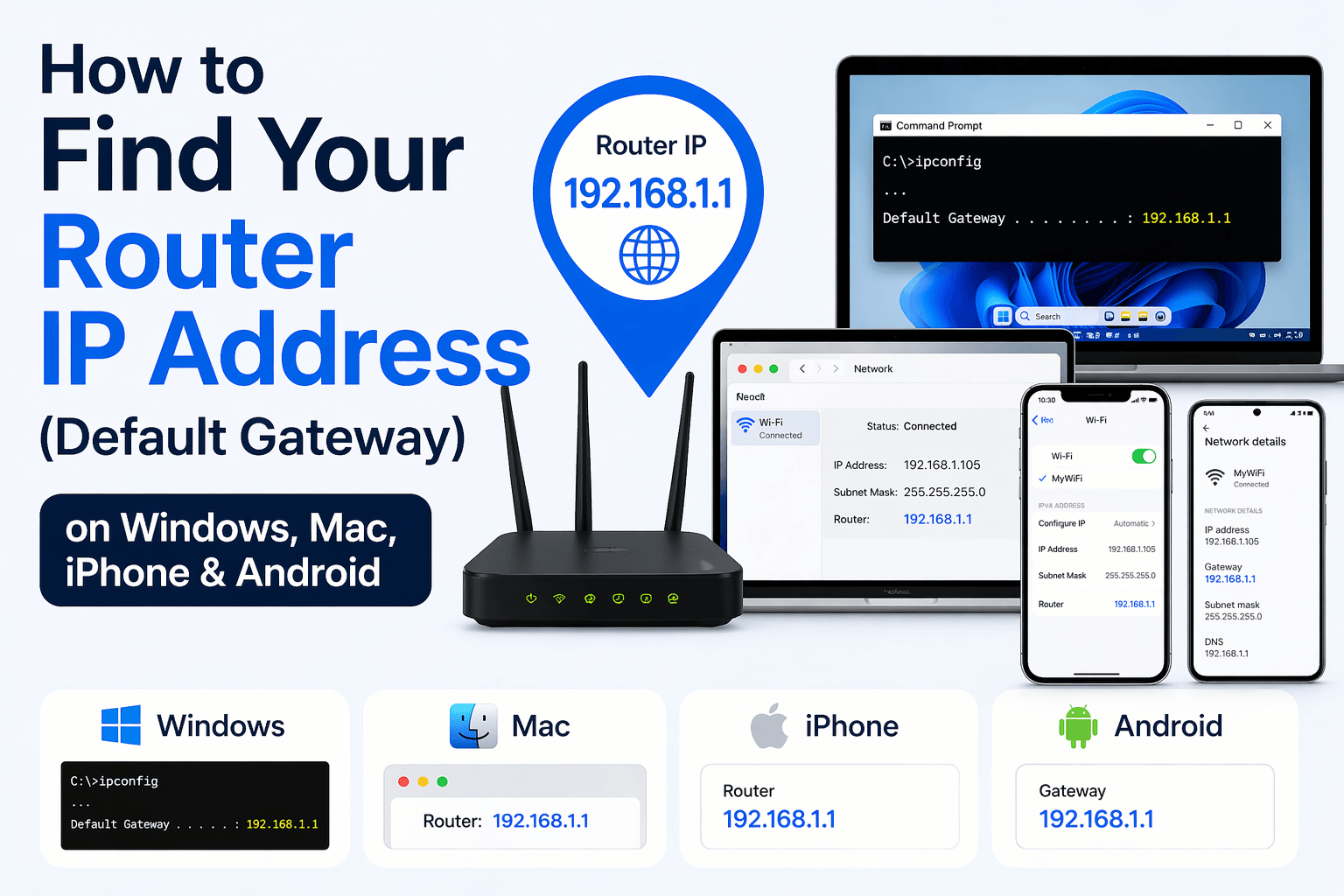
Finding your Router IP Address (also known as the Default Gateway) takes only a few clicks on Windows, Mac, iPhone or Android. The method differs slightly on each operating system, yet the result is always the same: a short series of numbers such as 192.168.1.1 or 192.168.0.1 that you can type into any browser to reach your router admin panel and manage Wi-Fi settings.
On Windows 10 and 11, you can locate your router IP through the Command Prompt using the ipconfig command or via Settings and the Control Panel. In every case, the number you need appears under the label Default Gateway next to your active Wi-Fi or Ethernet adapter. In contrast, on a Mac running macOS, the same value lives in System Settings under Wi-Fi Details, or can be pulled with a single Terminal command, where Apple labels it Router instead of Default Gateway.
Beyond desktop systems, both iPhone and Android expose the same information inside their Wi-Fi settings screen. On iOS, tapping the info icon next to the connected network reveals the router address in seconds. Similarly, on Android, the router IP appears as Gateway under the connected Wi-Fi network details, though the exact menu path depends on the Android version and device manufacturer.
In addition, this guide covers the difference between a private Router IP and a Public IP Address, lists the factory-default IPs used by NETGEAR, TP-Link, Linksys and ASUS, and shows Linux and Chromebook users where to look. To begin, let us define exactly what a Router IP Address is and why every user eventually needs to find it.
What Is a Router IP Address (Default Gateway) and Why Do You Need to Find It?
A Router IP Address is a private network identifier assigned to your home router, usually formatted as 192.168.x.x or 10.0.0.x, that acts as the Default Gateway through which every connected device sends traffic to the wider internet.
Specifically, the Router IP Address serves two practical roles in any home network. It is the address devices use to deliver packets to a destination outside the local network, and it is the entry point administrators use to log into the router web interface.
The most common default values used by consumer routers today include:
- 192.168.1.1 – widely used by NETGEAR, Linksys, ASUS and many ISP-provided routers.
- 192.168.0.1 – common on TP-Link, D-Link and older NETGEAR units.
- 192.168.68.1 – the default on TP-Link Deco mesh systems.
- 10.0.0.1 – frequent on Xfinity, Comcast and some enterprise gateways.
You need to locate this address whenever you want to change the Wi-Fi password, update router firmware, set up port forwarding for gaming, configure parental controls, or troubleshoot a slow connection. According to the NETGEAR support documentation, private IP addresses typically start with 192.168.x.x and are managed by the router itself through DHCP, while the public IP used for internet-facing traffic is assigned separately by your Internet Service Provider.
How Do You Find Your Router IP Address on Windows?
You can find your Router IP Address on Windows by running the ipconfig command in Command Prompt or by opening Network Settings, and the value will appear under the field named Default Gateway in both cases.
To begin, Windows 10 and Windows 11 offer two equally reliable paths to the same value. The first path suits users who prefer the keyboard and terminal, while the second path fits anyone more comfortable with the graphical interface. Below are the detailed steps for each method.
How to Find Your Router IP Using Command Prompt (ipconfig)?
The fastest way to reveal your Router IP on Windows is the ipconfig command, which prints the full network configuration of every active adapter in less than a second.
Specifically, follow these four steps:
- Click the Start button or press the Windows key, then type
cmdin the search bar. - Press Enter to open the Command Prompt. You do not need administrator rights for this task.
- In the black terminal window, type
ipconfigand press Enter. - Scroll to the adapter you are currently using (Wi-Fi or Ethernet) and look for the line labeled Default Gateway. The four numbers separated by periods, for example 192.168.1.1, make up your Router IP Address.
This approach works identically on Windows 7, Windows 10 and Windows 11. If you see multiple Default Gateway entries, one belongs to your physical adapter and the others come from virtual adapters such as VPN clients or Hyper-V. The physical adapter value is the router address you want.
How to Find Your Router IP Through Windows Settings or Control Panel?
Windows also exposes the Router IP Address through two graphical interfaces, the modern Settings app and the legacy Control Panel, which is helpful for users who prefer clicks over typed commands.
Through the Settings app on Windows 11, open Settings, then navigate to Network & Internet and click Hardware and Connection Properties. Scroll down the list until you reach the entry named Default Gateway, where the router address is displayed. The same method works on Windows 10 under Settings > Network & Internet > Status > View hardware and connection properties.
Alternatively, the Control Panel path remains available on all modern Windows versions. Open Control Panel, set the view to Category, and click View network status and tasks. Select your active connection, click Details in the status window, and look for the row labeled IPv4 Default Gateway. The number shown there is the Router IP Address you can paste into any browser to reach the admin panel.
How Do You Find Your Router IP Address on Mac (macOS)?
You can find your Router IP Address on a Mac through System Settings under Wi-Fi Details or by running a single Terminal command, and Apple displays the value under the label Router instead of Default Gateway.
Similarly to Windows, macOS offers both a graphical and a command-line method to retrieve the router address. The graphical method suits most users on modern macOS versions such as Sonoma, Ventura and Sequoia, while the Terminal method offers a single-line shortcut for advanced users.
How to Find Router IP Through System Settings and Wi-Fi Details?
On macOS Ventura and later, the Router IP Address is three clicks away inside the System Settings application, under the Wi-Fi panel.
To locate it, follow these steps:
- Click the Apple menu in the top-left corner of the screen, then select System Settings.
- In the sidebar, choose Wi-Fi (or Network if you use Ethernet).
- Click Details next to your currently connected network.
- Scroll to the TCP/IP tab. The value listed next to Router is your Router IP Address.
On older macOS versions such as Monterey, Big Sur or Catalina, the path is slightly different: open System Preferences > Network, select the active connection, then click Advanced > TCP/IP to reveal the same Router field. The value displayed is identical to what a Windows machine would show as Default Gateway, since both refer to the same physical router on the local network.
How to Find Router IP Using the Terminal Command on Mac?
For power users, a single Terminal command returns the Router IP Address without navigating through any menu, which is useful when scripting or managing multiple machines remotely.
Specifically, open Spotlight Search with Command + Space, type Terminal and press Enter. Inside Terminal, run:
route -n get default | grep gateway– returns a line such asgateway: 192.168.1.1.netstat -nr | grep default– offers an alternative that lists default routes for both IPv4 and IPv6.
The number that appears after the word gateway is your Router IP Address. This method works on every version of macOS since it relies on BSD-style networking utilities that Apple has shipped with the system for over two decades.
How Do You Find Your Router IP Address on iPhone and iPad (iOS)?
You can find your Router IP Address on iPhone or iPad by opening the Settings app, tapping Wi-Fi, then tapping the blue info icon next to your connected network, where the router value appears under the Router label.
Unlike Windows and macOS, iOS does not offer a Terminal or Command Prompt, so the Wi-Fi settings screen is the only built-in method available to every iPhone and iPad user. The process below applies to iOS 15, iOS 16, iOS 17 and iPadOS of the same versions.
How to Locate Your Router IP in the iPhone Wi-Fi Settings Step-by-Step?
The iPhone Wi-Fi settings screen displays the Router IP Address in a single panel alongside the device IP and subnet mask, which makes it easy to confirm both values at the same time.
Dưới đây là four steps used to reveal the value:
- Open the Settings app from the home screen.
- Tap Wi-Fi.
- Tap the blue circular info icon (i) next to the name of the network you are currently connected to.
- Scroll down to the IPv4 Address section. The value next to Router is your Router IP Address.
On the same screen you will also see the IP address assigned to your iPhone under IP Address, the Subnet Mask and the DNS servers used for name resolution. If the Router field is empty, it usually means your iPhone has not received an IP from the router yet, in which case toggling Wi-Fi off and on again will restore the values. For households running an iPad on a separate Wi-Fi band, the procedure is identical and returns the same Router IP since both devices share the same local network.
How Do You Find Your Router IP Address on Android?
You can find your Router IP Address on Android by opening the Settings app, tapping Connections or Network & Internet, selecting your connected Wi-Fi network and looking for the field named Gateway.
However, Android is more fragmented than iOS. The exact menu path depends on the Android version (Android 12, 13, 14 and 15) and the manufacturer skin (Samsung One UI, Google Pixel Stock, Xiaomi HyperOS or OnePlus OxygenOS). The two methods below cover every mainstream device.
How to Find Router IP via Connected Wi-Fi Network Details?
The native method on any modern Android phone is to open the Wi-Fi settings, tap the currently connected network, and read the Gateway field in the advanced details panel.
Specifically, the typical steps are:
- Open the Settings app.
- Tap Connections on Samsung devices, or Network & Internet on Pixel and stock Android.
- Tap Wi-Fi, then tap the gear or info icon next to the network you are connected to.
- Scroll down and tap View more or Advanced. On some devices you may need to tap IP settings and change it temporarily to Static to reveal the Gateway value.
- Read the address listed under Gateway. That value is your Router IP Address.
On Pixel devices running stock Android 14 or 15, the Router IP is shown under Network details without any additional tap. On Samsung Galaxy phones with One UI 6 or 7, tapping the Wi-Fi network followed by View more exposes the full list, including the gateway. If your manufacturer has hidden the Gateway field entirely, the third-party app method described below is a reliable fallback.
How to Find Router IP Using a Wi-Fi Analyzer Third-Party App?
When the built-in Wi-Fi details panel does not display the gateway, a free app from the Google Play Store can read the same information directly from the Android network stack.
The most widely used option is Wi-Fi Analyzer by farproc, which has been updated regularly and works on Android 7 through Android 15. After installing the app, open it, grant the location permission required by Android for Wi-Fi scanning, then tap the View menu and choose AP list. Tap the row labeled Connected to [your network name], and a detailed window will appear listing your router signal strength, channel, and the full set of network parameters including the Gateway, which is the Router IP Address.
Alternatively, apps such as Network Analyzer, Fing and PingTools also show the router address under labels such as Gateway or Default Router. These tools add the benefit of scanning every device connected to your network, which is handy when you want to confirm which client is using the most bandwidth.
What Is the Difference Between a Router IP Address (Private) and a Public IP Address?
A Router IP Address is a private identifier used only inside your home network, while a Public IP Address is the external address assigned by your Internet Service Provider that the wider internet uses to reach your network.
In contrast to the private router address, the public IP is visible to any website or server you connect to, which is why websites such as whatismyip.com can display it instantly. The table below summarizes the core differences between the two.
The following table compares the private Router IP with the Public IP on four key criteria commonly asked by home users:
| Criterion | Router IP Address (Private) | Public IP Address |
|---|---|---|
| Scope | Local network only (LAN) | Entire internet (WAN) |
| Typical format | 192.168.x.x or 10.0.0.x | Any IPv4 or IPv6 range not reserved for private use |
| Assigned by | The router itself via DHCP | Internet Service Provider |
| How to find it | ipconfig, Wi-Fi settings, router label | Online IP checker website |
Resetting the router usually does not change the private Router IP because the default value is hard-coded by the manufacturer. However, restarting the modem for several minutes can cause the ISP to hand out a new public IP, which is a frequent trick used to bypass IP-based bans or refresh a connection.
What Are the Default Router IP Addresses for NETGEAR, TP-Link, Linksys, and ASUS?
The default Router IP Address varies by brand. NETGEAR ships most routers with 192.168.1.1 or 192.168.0.1. TP-Link uses 192.168.0.1 or 192.168.1.1 on standard models and 192.168.68.1 on Deco mesh systems. Linksys uses 192.168.1.1 on most units and 10.10.10.1 on some E-series gateways. ASUS uses 192.168.1.1 or 192.168.50.1 depending on firmware. D-Link commonly uses 192.168.0.1, and Xfinity gateways default to 10.0.0.1. You will also find the factory IP printed on the sticker at the bottom or back of the router.
How Do You Find Your Router IP Address on Linux and Chromebook?
On Linux, open a terminal emulator and run ip route or ip r | grep default. The address shown after default via is your Router IP Address. The legacy command route -n returns the same value under the Gateway column. On Chromebook (Chrome OS), click the notification area in the bottom-right corner, select your connected Wi-Fi network, tap the arrow next to the network name, and open Connection Details. The router address appears under the Gateway label. Both methods return the same numeric value that Windows labels as Default Gateway and macOS labels as Router, confirming the address you can use to reach the admin panel.