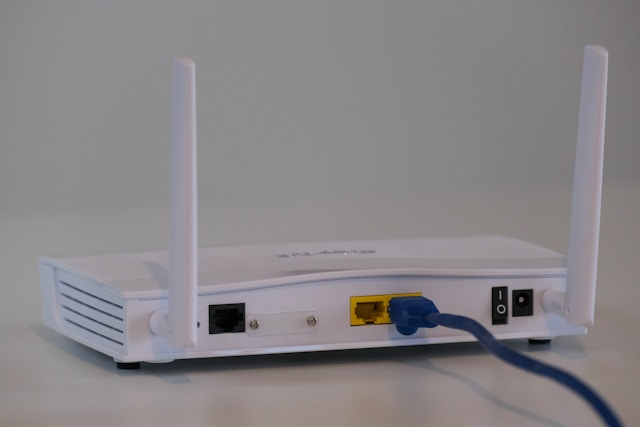
The complete default router username and password list contains login credentials for over 300 router brands, with “admin/admin,” “admin/password,” and “admin/[blank]” being the three most common combinations used by manufacturers such as TP-Link, Netgear, Linksys, D-Link, Asus, Cisco, Huawei, and ZTE. These factory-set credentials grant access to the router admin panel, where users can modify Wi-Fi names, change network passwords, update firmware, and configure security settings. Specifically, the list is organized by brand and matched with the corresponding default IP gateway so that every lookup returns three pieces of information in one place: username, password, and login URL.
Consumer router brands and ISP-provided modems use distinct default credentials. TP-Link, Netgear, Linksys, Asus, and D-Link follow the “admin/admin” convention, while ISP-issued devices from Huawei, ZTE, Arris, or Technicolor often carry custom logins such as “user/user,” “admin/telecomadmin,” or “admin/motorola” printed directly on the device label. Knowing which category the router belongs to narrows the lookup significantly.
Alongside the credentials, every router uses a default IP address as its login gateway. The most widely used IPs are 192.168.1.1, 192.168.0.1, 192.168.2.1, and 10.0.0.1. Typing this IP into any browser connected to the router network opens the admin login page where the default username and password must be entered.
This guide breaks down every element needed to successfully access any router: the definition of default credentials, the complete list organized by brand, the corresponding default IPs, the step-by-step login process, and the critical security action to take immediately after logging in.
What is a Default Router Username and Password?
A default router username and password is a pre-configured pair of login credentials set by the manufacturer during production, used to grant first-time access to the router administration interface. The username is typically “admin” and the password is often “admin,” “password,” or left blank.
To understand how these credentials function, it helps to look at what they unlock and why manufacturers standardize them in the first place.
The default username and password work as an authentication key pair that opens the router’s web-based admin panel. Once entered, the user gains full control over every network setting: the SSID (Wi-Fi name), wireless password, guest network options, port forwarding rules, parental controls, firmware updates, and MAC address filtering. Manufacturers preload these credentials because every router must be accessible on first setup, before the user has chosen a personal password. Without a default pair, the device would be locked out of the box.
The default credentials are usually printed on a sticker attached to the underside or back of the router chassis, alongside the default Wi-Fi network name and the device serial number. Some ISPs also print the credentials on the welcome letter sent with the modem. According to the Router Passwords Community Database maintained at RouterPasswords.com, over 450 router models across consumer and enterprise categories share “admin/admin” as their factory-set login, making it the most common credential combination in home networking equipment worldwide.
Once the concept of default credentials is clear, the next step is to look up the exact username and password for the specific brand or model in use.
What is the Complete Default Router Username and Password List for All Brands?
The complete default router username and password list covers all major consumer brands and ISP-provided modems, with “admin/admin” being the most common pair, followed by “admin/password,” “admin/[blank],” “root/root,” and brand-specific credentials such as “user/user” or “admin/motorola.” The list below is grouped by device category for faster lookup.
Specifically, credentials are separated into two primary groups: consumer routers purchased directly by end users, and ISP-provided modems distributed by internet service providers.
What are the default login credentials for popular consumer router brands?
Popular consumer router brands such as TP-Link, Netgear, Linksys, D-Link, Asus, Belkin, Cisco, Tenda, Xiaomi, and Mercusys ship with their own factory-set usernames and passwords. The table below lists the default login credentials and IP addresses for the most common consumer router models sold globally so that readers can find the correct pair at a glance.
| Brand | Default Username | Default Password | Default IP Address |
|---|---|---|---|
| TP-Link (Archer, TL-WR) | admin | admin | 192.168.0.1 / 192.168.1.1 |
| Netgear (Nighthawk, Orbi) | admin | password | 192.168.1.1 / 192.168.0.1 |
| Linksys | admin | admin | 192.168.1.1 |
| D-Link | admin | [blank] | 192.168.0.1 |
| Asus (RT-AC, RT-AX) | admin | admin | 192.168.1.1 |
| Belkin | admin | [blank] | 192.168.2.1 |
| Cisco Small Business | cisco | cisco | 192.168.1.1 |
| Tenda | admin | admin | 192.168.0.1 |
| Xiaomi Mi Router | admin | admin | 192.168.31.1 |
| Mercusys | admin | admin | 192.168.1.1 |
| Ubiquiti (UniFi) | ubnt | ubnt | 192.168.1.1 |
| Synology Router | admin | [blank] | 192.168.1.1 |
Most consumer routers use the combination of “admin” for both username and password at the lowest-tier models, while mid-range and premium models often ask the user to set a custom password during the first setup wizard. For example, Netgear Nighthawk routers since 2018 require a unique password on first boot, so the “admin/password” default only applies to older firmware or factory-reset devices.
If the router model is not listed above, the most reliable fallback is to check the label sticker on the device or consult the user manual packaged with the router on first purchase.
What are the default login credentials for ISP-provided modems and routers?
ISP-provided modems and routers from Huawei, ZTE, Arris, Motorola, Technicolor, Sagemcom, and regional carriers such as FPT, Viettel, and VNPT ship with ISP-customized credentials that differ from standard consumer router defaults. The table below consolidates the most common ISP modem logins used worldwide and in Vietnam.
| Brand / ISP | Default Username | Default Password | Default IP Address |
|---|---|---|---|
| Huawei (HG, EG, AX series) | admin | admin | 192.168.100.1 / 192.168.1.1 |
| ZTE (F609, F660, F670L) | admin | admin | 192.168.1.1 |
| Arris (SB, TG series) | admin | password | 192.168.0.1 / 10.0.0.1 |
| Motorola (SURFboard) | admin | motorola | 192.168.100.1 |
| Technicolor (TG, TD series) | admin | admin | 192.168.1.254 |
| Sagemcom (Fast series) | admin | admin | 192.168.1.1 |
| FPT Telecom (Vietnam) | admin | admin / Zaq!xsw2 | 192.168.1.1 |
| Viettel (Vietnam) | admin | admin / Admin@telecom | 192.168.1.1 |
| VNPT (Vietnam) | admin | admin | 192.168.1.1 |
| Verizon Fios | admin | password | 192.168.1.1 |
| Xfinity / Comcast | admin | password | 10.0.0.1 |
ISP-provided modems often have two-tier access: a basic user account and a hidden super-admin account used by the provider’s technicians. The super-admin login (for example, “telecomadmin/admintelecom” on some Huawei and ZTE GPON ONTs) unlocks advanced settings such as WAN configuration and VoIP provisioning. Regular users only need the basic credentials listed above for everyday tasks.
What are the Default IP Addresses Used to Access Router Login Page?
The default IP addresses used to access the router login page are 192.168.1.1, 192.168.0.1, 192.168.2.1, 192.168.31.1, 192.168.100.1, 192.168.1.254, 10.0.0.1, and 10.0.0.138. These private IPv4 addresses serve as the gateway URL for opening the router admin panel through any web browser connected to the network.
Each default IP correlates with specific router brands and ISP devices, making the correct IP an essential piece of information alongside the username and password.
| Default IP Address | Common Brands | Usage Context |
|---|---|---|
| 192.168.1.1 | Linksys, Asus, older TP-Link, Cisco, Huawei, ZTE, FPT, Viettel, VNPT | Most common gateway globally |
| 192.168.0.1 | D-Link, Netgear, Tenda, newer TP-Link, Arris | Second most common gateway |
| 192.168.2.1 | Belkin, SMC | Niche consumer routers |
| 192.168.31.1 | Xiaomi Mi Router | Xiaomi ecosystem only |
| 192.168.100.1 | Huawei GPON ONT, Motorola modems | Fiber optic modems |
| 192.168.1.254 | Technicolor, 3Com | European ISP modems |
| 10.0.0.1 | Arris, Xfinity, Apple AirPort | North American ISPs |
| 10.0.0.138 | Comcast business modems | Business-class service |
Because 192.168.1.1 is the most widely used private gateway, a user trying to log in to an unknown router should always try this address first, followed by 192.168.0.1. If both fail, the actual gateway IP must be identified from the user’s device.
How to find your router’s default IP address on Windows, macOS, and mobile devices?
Finding the router’s default IP address on Windows, macOS, Android, and iOS takes four operating-system specific methods, each completed in under 30 seconds. The correct IP is always listed as the “Default Gateway” in the network settings of the connected device.
The method varies by platform and is summarized below:
- Windows 10/11: Open Command Prompt, type
ipconfigand press Enter. The router IP appears next to “Default Gateway” under the active network adapter. - macOS: Open Terminal and type
netstat -nr | grep default. The first IP shown next to “default” is the router gateway. Alternatively, go to System Settings, Network, Details, TCP/IP, and read the “Router” field. - Android: Open Settings, Wi-Fi, tap the connected network name, scroll down and read the “Gateway” entry. Some Android skins list it as “Router.”
- iOS (iPhone/iPad): Go to Settings, Wi-Fi, tap the small “i” icon next to the connected network, and read the “Router” field under the IPv4 section.
- Linux: Open Terminal and type
ip route | grep default. The IP after “default via” is the router gateway.
If none of these methods returns a valid IP, the last fallback is the sticker on the router chassis, which almost always lists the default gateway alongside the default SSID and password.
Do All Routers Share the Same Default Username and Password?
No, not all routers share the same default username and password, although the majority of consumer models converge on “admin/admin” or “admin/password.” Three main factors drive the differences: manufacturer policy, firmware version, and ISP customization.
Specifically, the reasons behind this variation reveal why a single universal credential does not exist across all brands.
Reason 1: Manufacturer Policy. Brands like Cisco use “cisco/cisco” for small business devices, Ubiquiti uses “ubnt/ubnt” for UniFi access points, and Belkin leaves the password field blank by default. Each company makes an independent decision during the device firmware design phase, resulting in dozens of unique credential patterns across the industry.
Reason 2: Firmware Version. Newer firmware releases, especially those updated after 2020, often force the user to set a custom password on first boot instead of preloading a factory default. TP-Link Archer routers shipping with firmware version 1.1.0 or later, for example, skip the “admin/admin” default entirely and present a setup wizard that demands a strong password of 8 or more characters.
Reason 3: ISP Customization. Internet service providers frequently reconfigure the default credentials of modems they distribute. A Huawei HG8145V5 modem sold retail may use “admin/admin,” while the same hardware supplied by FPT Telecom in Vietnam ships with “admin/Zaq!xsw2” or a serial-based password. This customization is done to reduce the attack surface of mass-deployed consumer modems.
According to a 2023 report by cybersecurity firm ESET, 23 percent of home routers tested globally still used the unchanged factory default credentials, making them directly vulnerable to automated credential-stuffing attacks. This statistic confirms that while defaults vary by brand, the practice of keeping them unchanged remains dangerously common.
What is the Step-by-Step Process to Log In to a Router Using Default Credentials?
The step-by-step process to log in to a router using default credentials takes five actions and typically completes in under two minutes: connect to the router network, open a web browser, enter the default IP address, input the default username and password, and access the admin dashboard. Each step must be completed in order.
The full sequence below walks through every action required, including the most common errors to avoid.
- Step 1: Connect to the router’s network. Use an Ethernet cable plugged into any LAN port on the router, or join the default Wi-Fi network printed on the router label. The connection must be active before the admin page becomes reachable.
- Step 2: Open a web browser. Any modern browser works, including Chrome, Firefox, Safari, Microsoft Edge, and Brave. Private or incognito mode is recommended to avoid cached credentials from a previous session.
- Step 3: Enter the default IP address in the URL bar. Type the IP (for example,
http://192.168.1.1) directly into the address bar, not into the search bar, and press Enter. The router login page should load immediately. - Step 4: Enter the default username and password. Input the correct credential pair from the tables above. Both fields are case-sensitive on most routers, so “Admin” and “admin” are treated as different values.
- Step 5: Access the admin dashboard. Once authenticated, the router admin panel displays network status, connected device list, Wi-Fi settings, and advanced configuration menus. From here, firmware updates, password changes, and port forwarding rules can be configured.
If the login page does not load after entering the IP, three common problems are usually responsible: the device is not actually connected to the router network, the IP is incorrect, or the router needs a physical restart. Holding the reset button on the back of the router for 10 seconds restores factory defaults and reactivates the original credentials.
Once inside the admin dashboard with default credentials, the single most important action is to change those credentials immediately to protect the network from unauthorized access.
Why Should You Change the Default Router Username and Password Immediately After Login?
You should change the default router username and password immediately after first login because factory credentials are publicly documented, widely exploited by botnets, and represent the single largest security vulnerability in residential networks. Changing them blocks remote attacks that specifically target unchanged defaults.
With using a custom strong password, keeping the default exposes the network to three serious risks: credential stuffing, botnet recruitment, and unauthorized remote administration. The 2016 Mirai botnet infected over 600,000 IoT devices by scanning the internet for default credentials like “admin/admin” and “root/root,” ultimately powering one of the largest distributed denial-of-service (DDoS) attacks in history against DNS provider Dyn.
How to change your router’s default username and password for enhanced security?
To change the router’s default username and password, log in to the admin panel, navigate to the Administration, System Tools, or Management section, and locate the “Change Login” or “Router Password” option. Enter a new username (if supported) and a strong password containing at least 12 characters, mixing uppercase, lowercase, numbers, and symbols. Save the changes and log in again with the new credentials to confirm the update.
A strong replacement password avoids dictionary words, movie titles, birthdays, and keyboard patterns like “qwerty123.” A randomly generated passphrase such as “Blue7-Cactus!Runner-92” offers both memorability and strong resistance to brute-force attacks. After updating, enable WPA3 encryption if available and disable remote management to further reduce the attack surface.
What is the difference between default credentials on routers vs. IoT devices like DVRs, IP cameras, and smart home hubs?
The difference between default credentials on routers and on IoT devices lies in scope and replaceability. Router defaults protect a single network gateway and can usually be changed through a visible admin panel. IoT device defaults (on DVRs, IP cameras, smart plugs, and doorbells) often hide behind minimal or no user interface, with many devices shipping “admin/admin,” “root/xc3511,” or “admin/123456” hardcoded into firmware.
This hardcoding is why the Mirai botnet targeted IoT cameras more aggressively than routers. A 2017 study by the Cyber Independent Testing Lab found 61 percent of surveyed IP cameras could not change their root password even when users attempted to do so, compared to near 100 percent password changeability on consumer routers.